Showing posts with label Windows 8 Tips. Show all posts

Thursday, February 14, 2013

Can't type @? Fix it Now by Adding US English !


at symbol


If you're using Windows you may face problem to type @. Specially when you are sending an email to someone. Because an email address essentially includes the symbol @. But all users of Windows 8 doesn't face this problem. Because they aren't using UK English! 

Yes, this problem is only faced by the users of Windows 8 whose input method is UK English.  In that situation you can add another language. 


However you can easily add a language in Windows 8. Follow the procedure below: 
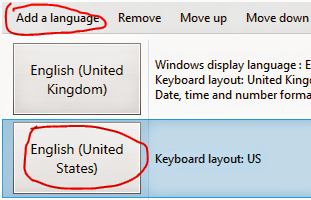
Adding English US language

  1. Go to Control Panel (Hint: Start + R > type Control > Enter
  2. Hit on Language option
  3. Click Add a Language button
  4. Choose your language from the list. ie. English
  5. Here you will see all the available variations of English
  6. Choose English and double click on it 
  7. Select English (United States) and hit on Add button
  8. Now you will see the list of added language. 
  9. To remove any language select it first, then click on Remove button. 
  10. Now look at the left of your clock in the Task Bar. You will see ENG. Hit on it and select English US Keyboard.
  11. You can switch language anytime by pressing Start + Space. That's it! 
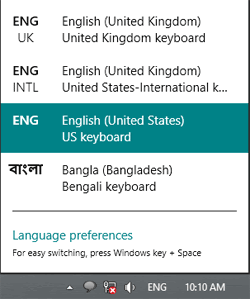


How to Change Language in Windows 8

Stay with Marks PC Solution to get more interesting IT topics!

Sunday, December 30, 2012

How to Change or Create Password in Windows 8


If you're still using the earlier versions of Windows then you may thought creating or changing a password in Windows 8 is same as previous versions. But those who are working with Windows 8 know that this is not same at all. 

When you are installing Windows 8 for the first time then you can set a password at the end of the installation process. If you skip that step during the time of installation then you will have to set it from the PC settings. 

In earlier versions of Windows password can be managed from a control panel item named User Accounts. This item is still available. But you can't manage your password from here. Today I will show you the easiest way to do this task. 

Remember: Your Windows should be genuine or it may ask you to activate windows while doing this task. So, if you have any problem regarding activation then visit: Windows 8 Activation Process
  1. Press Start + W > type Password > select Change your password. Or you can simply press the Start button and click on user icon from the top right corner. Then choose Change account picture and choose Users. Both do the same job. 
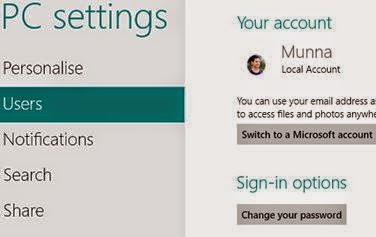
  2. Now as you can see in the image below, hit on the Change your password under the sign in option. Click on it to change. 
  3. Now you can change or create your password from here as you did in earlier versions. 
  4. You can also set a picture password from here. Do it with caution if you're a beginner! 
You can also change your password in running condition if forgotten !! Visit here to know more: Change Windows Password if Forgotten


Stay with Marks PC Solution to get more interesting IT topics!