Monday, February 18, 2013

How to Remove Navigation Bar from Blogger Blog


Blogger Transparent Logo


By default your blogger blog will have a generic navigation bar like other blogger sites. But it doesn't look professional if your site has common navigation bar at the top of it. And this is actually not very essential for your site. So you can remove it without any hesitation. Of course you can get it back any time if you change your mind. 


Blogger Blog Navigation Bar


To be honest the default navigation bar of blogger has few advantages. It will allow your visitor to:
  • Search your site 
  • Share your site on Google +
And it also allow you to:
  • Sign in to your site or sing out from your site
  • Access your blogger dashboard
But professional bloggers neither like to navigate from here nor let the visitors to use this. They like to use custom sharing and navigation options within the blog area. So, if you would like to give a professional look to your blogger blog then you can remove it from your site. Just do the following: 
  1. Make sure you're logged in to your blogger account. 
  2. Go to the dashboard and hit on the Layout. 
  3. Find the Navbar widget and click on Edit as shown in the image below. 
  4. There are 6 types of navigation bar. And at the end there is Off option. 
  5. Select Off and Save it. That's it. Now visit your site. 
You can get it back anytime. To turn on this bar follow all the above steps. Just choose any of the 6 type of bars in the step 5. 


How to turn off or turn on the navigation bar from blogger site


Stay with Marks PC Solution to get more interesting IT topics!


Sunday, February 17, 2013

How to Customize the Favicon of Blogger Blog


Favicons Transparent PNG Image


While surfing the different webpages you might notice that every website has an icon in the browser tab. Normally you can see the icon at the left of the title of the page. This is known as favicon. If you make your blog using blogger, then your favicon will be the icon of the blogger. 


Favicon in the Browser Tabs


Look at the above image. There are two favicons. The first one is showing the favicon of blogger. And the second one is showing the favicon of the Marks PC Solution. 


Today I'm gonna show how to change or customize the favicon of blogger blog. This is however a simple task if you know. Okay let's start. 
  1. First you've to make an icon which will be used as favicon. (Less than  100 KB)
  2. Sign in to your blogger dashboard. 
  3. Go to the Layout from the left pane.
  4. Hit on the Favicon.
  5. Click on Choose File and then select your favicon image from hard disk.
  6. Then upload the icon and save it. 
  7. Don't hurry! Favicon will not be shown immediately. Because your browser has cached the image. Clear the browser cache or wait for 2 days. 


Customize the Blogger Favicon


Stay with Marks PC Solution to get more interesting IT topics!


Friday, February 15, 2013

Index Drives to Search Files Faster on Windows 8


Search Icon PNG


If you have switched to Windows 8 from Windows 7, you might notice that search option is not very strong. When you search something on Windows 8 it doesn't show the files stored on Hard Disk. It only searches on some specific locations. Because other hard drives are not automatically indexed. 

If you wanna enhance your search experience then you should index all the drives of your computer in the indexing service. If your drives are indexed then your search item will appear immediately as you type. 

Okay let's start: 
  1. Go to Control Panel (Hint: Start + R > type Control > press Enter) 
  2. Hit on the Indexing Options
  3. Click on Modify button
  4. Select all the Drives as shown in the image below
  5. Hit OK
  6.  That's it. Now within few hours your all files and folders will be indexed to the indexing service. 
Note: If you wanna omit any drive from indexing then unmark it.


How to add drives in search index


Stay with Marks PC Solution to get more interesting IT topics!


Thursday, February 14, 2013

Can't type @? Fix it Now by Adding US English !


at symbol


If you're using Windows you may face problem to type @. Specially when you are sending an email to someone. Because an email address essentially includes the symbol @. But all users of Windows 8 doesn't face this problem. Because they aren't using UK English! 

Yes, this problem is only faced by the users of Windows 8 whose input method is UK English.  In that situation you can add another language. 


However you can easily add a language in Windows 8. Follow the procedure below: 

Adding English US language

  1. Go to Control Panel (Hint: Start + R > type Control > Enter) 
  2. Hit on Language option
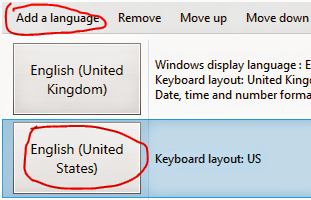
  3. Click Add a Language button
  4. Choose your language from the list. ie. English
  5. Here you will see all the available variations of English
  6. Choose English and double click on it 
  7. Select English (United States) and hit on Add button
  8. Now you will see the list of added language. 
  9. To remove any language select it first, then click on Remove button. 
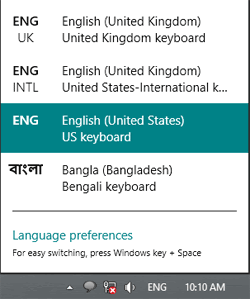
  10. Now look at the left of your clock in the Task Bar. You will see ENG. Hit on it and select English US Keyboard.
  11. You can switch language anytime by pressing Start + Space. That's it! 


How to Change Language in Windows 8

Stay with Marks PC Solution to get more interesting IT topics!

How to Hide or Unhide a File or Folder


Hidden Folder PNG


A common question asked by the beginner is how to hide a file or folder. Hiding a file or folder means you don't want others to have access in that particular file or folder. For example- You don't let your little brother access your games folder as I do normally! Or you may have any other private reason. For example- You don't want others to see a file which contains your online accounts information. 

Most of the PC users know how to hide or unhide a file. But some of you may not know this. For those guys I'm gonna write about this. 


Okay let's start hiding your files or folders: 
  1. First of all go to the location where your particular file or folder is located. For example: D Drive Games Folder.
  2. Right click on the file or folder you wanna hide and choose Properties. 
  3. Mark the Hidden option and hit OK. 
  4. That's it. Your selected file is now hidden. 

How to Unhide a file or Folder


Now if you wanna view the hidden item do as below: 
  1. Go to the Folder Options from My Computer. Windows XP users will find this under the View menu. 
  2. Hit the View in Folder Options.
  3. Select Show Hidden Files and Folder and Hit OK.
  4. Now you can see your Hidden File or Folder. 
  5. Right click on it and go to Properties. 
  6. Unmark the Hidden option and Hit OK. 
  7. That's it. 

If your files and folders are hidden by virus then read the following posts: 

Stay with Marks PC Solution to get more interesting IT topics!

How to Install or Uninstall Fonts in Windows


Font Icon


By default Windows Operating Systems include some essential fonts. Which you can use for any kind of writing. Though there are many English fonts but you may not have your local fonts. Or you may not have necessary stylish fonts installed with your Windows. In that case you can easily install new fonts if you need. 

Fonts Logo PNG


Those who already know how to install fonts may think- this post is quite unnecessary. But I've to write because many of you can't install fonts. I'm gonna show the easiest way to install new fonts on Windows PC. Hopefully this will work for all running versions of Windows. 

  1. First go to the folder where your necessary fonts are stored. 
  2. Select the fonts (Ctrl + A) and copy them by pressing Ctrl + C.  
  3. Now Press Start + R to open Run, then type Fonts and hit Enter. 
  4. Here you will see all the fonts installed on your PC. 
  5. Press Ctrl + V to install the fonts you copied in the step 2. 
  6. To uninstall a font, first select it and press Delete. 
  7. Use the search options if you wanna find any font. That's it. 

Stay with Marks PC Solution to get more interesting IT topics!


Wednesday, February 13, 2013

Download Free Mobile Dictionaries for Java Mobiles!


Flag Icon


Mobile phone users often ask for free mobile dictionary. And there are many sites for downloading mobile dictionary. Specially there are lots of options for Java enabled cell phones. Because Java is a popular file format for mobile apps and also very handy to install and use. 

Today I'm gonna share a site with you. And here you will get free mobile dictionaries for your java enabled mobile phone. 

Features: 
  • Support Online/ Offline Installation
  • Fast, Easy and Safe
  • Instant Translation
  • On Screen Keyboard for Touch Screen
  • Small File Size
  • Adjustable Font Size

Supported Mobiles:
  • Nokia
  • Samsung
  • Motorola
  • LG
  • SE
  • RIM Phones
  • Other Java Enabled Sets

Instruction: No special procedure is required for downloading or installing the dictionary. This is very simple. 
  1. First go to this site: Dictionary 9. 
  2. Select your flag or first language. ie. English
  3. Now choose your second language. ie. Bengali. (That means your dictionary will be English to Bengali) 
  4. Hit on the Download button.
  5. Immediately a box will appear. At the left side you get a link. On the right, you will get a download option. 
  6. Visit the link of the left side from your phone if you wanna install this immediately. Or you can download it from the right side link to keep a backup file on your PC. 

Installation Procedure: 

If you keep the file in your PC then you've to transfer the file to the phone memory. Then open your File Manager from mobile. You will be able to see Java File. Then select the file and hit OK to start installation. That's it. Enjoy surfing the word! 


Stay with Marks PC Solution to get more interesting IT topics!