Showing posts with label Download. Show all posts

Friday, August 9, 2013

Give your Android Device Windows 8 Look !!!

Convert Android Phone into Windows 8

Today I've come with an interesting and funny post for you. Maybe you've already realized what the topic is. Because the post title defines the post clearly! 

Android OS is now very popular for mobile devices. Even with some limitations, exciting features of Android devices are now minimizing the Market Share of Apple and Samsung. On the other hand, Nokia is out of competition for last few years. But the Lumia Series are now getting popularity among the mobile users. 


Before moving to the topic I'd like to share something with you. You know I've moved from Dhaka to Khulna with my new job. Now I am in Eid Vacation. I hardly used mobile earlier. But as I am now in Khulna, I need to contact home frequently. So I purchased an Android Phone. Normally I don't write about mobile devices. Only few posts have been published so far. But from now and then you may get more tips on Mobile Devices! 


Okay let's back to the track. I'm gonna show a magical tips today- Convert Android into Windows! Get ready for that . . . 


  • Hit on the above Download Link and download the file named Android to Windows.
  • This is a zipped file (2.66 MB)
  • After downloading the file you need to unzip it. 
  • Now connect your phone to PC and copy the file to your phone memory card. (You just need to copy the file to your memory card any how. You can use Bluetooth or card reader too.)
  • Now go to your device file explorer. Locate the file where you've kept it. Hit the file named Launcher8_1.2.6.2-1.apk. 
  • A new screen will appear and ask you to give permission to install it. (Read the important message before installing)
  • Hit on the install button and wait few seconds. Now hit on the open button and see magic. 

Important: Before you install, you must know:

Normally android will not let you install third party tools unless it is downloaded from Google Play Store. You may get error/ warning message when you hit on the Launcher 8 file. To avoid warning and continue to installation you need to change your settings as below:
  • Go to the Settings > Applications > Check the option named Unknown Sources (Allow installation of non-Market applications) > That's it. 

What is this actually? 

This is nothing but a theme of Windows 8. After installing this theme on your Android Device, your phone will look like Nokia Lumia or Windows Phone. You will be able to see live tiles. But all other tasks will be operated by Android System. This theme pack works with both Mobile and Tablet. 

When you click on the home button of your device, it will ask you whether to complete action using Launcher 8 or Android. 

Don't be afraid. It's simply a look of Windows 8. All your settings, system will remain unchanged. 

And if you face any problem or if you don't wanna use it no problem. You can easily uninstall it from your device. 


How to Uninstall? 

Very Simple. Just follow the process below:

Settings > Applications > Manage Applications > Hit on the Launcher 8 > Hit on the Uninstall button. 


Please let me know by comment- Whether you enjoyed this or not . . . :) 


Stay with Marks PC Solution to get more interesting IT topics!

Thursday, June 13, 2013

Explore Apps from Windows Store!


Windows Store Tile Image


Most of you are now familiar with the exciting features of Windows 8 - the latest Operating System released by Microsoft. But how many of you are familiar with the Windows Store? This is the most exclusive part of Windows 8. Because no internet browser can take you to the Windows Store unless you're a user of Windows 8! 


Windows Store only belongs to the Windows 8 users. Whenever you start Windows 8, you must find the live tile of Windows Store at the start screen. If you hit on the Store icon, a new window will open containing the apps. There are some categories such as Games, Entertainment, Education etc. But have you noticed that there is no search option? Isn't it very strange? 


Definitely this is very strange that Windows Store has no search option itself! But there is an alternative search option for you. Newly designed Windows Search option allows you to find the necessary apps from Windows Store. Today I will discuss how you can search necessary apps from Windows Store. 


Requirements: 

Nothing special is required to explore Windows Store. But you should know, only Windows 8 users have access to the Store. And you must have a Windows Live ID. It can either be Hotmail or Live Mail. 

For Example: markspc@hotmail.com, markspc@live.com etc. 


How to Use the Store: 

Very easy. But sometimes you might be confused. First time when I visited the Store, I was looking for the search option. Actually there is no search option in the Store. You have to use the Windows Search option. 

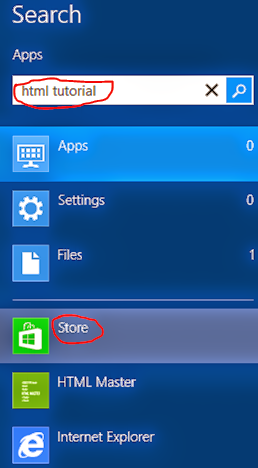
  • To find the apps > Simply press Start + F to enable Search, type something in the box for example- HTML Tutorial > Then hit on the Store > Immediately the Store will be running on a new Window. 
Hint: Actually you don't need to press Start + F ! Just press Start and type the name of your desired application. Search option will be enabled automatically. Also have a look at the image below to see how to search: 

Windows 8 Search Option to search Apps on Store


  • Choosing the Apps: The Store may gather more than hundred apps for you for a single search query depending on the number of apps stored on it. But you may need only one or two of them. You can shorten the list in many ways. You can use the price, rating or reviews to select the apps. If are now willing to pay money, then choose only free apps from the category. When you will select only free apps, the list will be sorted fast! 

  • Installing the Apps: Before installing any app, check the rating and reviews of that app if any. And you should also read the details of that app. And you must check what permissions that app wants from you. If everything is okay then you can hit on the Install button. If you're not signed in with Windows Live ID, you may need to type the email and password. Now the app will be downloaded and installed. No action is necessary during the installation. Everything will be done automatically done. 

  • Uninstalling the Apps: This happens to me very often! Several times I've removed the apps immediately after installing them. Sometimes apps may not be as how you want. It that case you can remove it and look for a better alternative. To remove an app, press Start > then right click on the app you wanna remove > hit on the Uninstall button from the bottom. 


Ads with the Free Apps: Free apps may include the ads of Microsoft. Some apps don't required net connection to operate. But they will shows ads from Microsoft. If you don't like ads then you can disconnect your net while running those apps. But you must be connected to the net to run the apps that require internet access. 


Enable/ Disable Live Apps: Some apps are live. They consume your bandwidth even when you are not using them! If you don't want them collect data from internet then go to the start screen by pressing Start button > Right click on that app > choose Turn Live Tile Off from the bottom. Or when you wanna enable it do the same thing again. 


The last thing I would like to tell you, Store is a great place to find free and premium apps. It's a good step taken by Microsoft. Previously Microsoft had no app store for the users. But apple has a very rich app store for their users. We should use the Windows Store to use the apps, and we should also help to enrich it by rating and reviewing the apps. And I think it will be helpful for the Store to supply more apps for us! 


And if my post is being read by a developer I request you to cooperate the Store :) 


Stay with Marks PC Solution to get more interesting IT topics!


Monday, May 27, 2013

Windows 8 Activator for All Editions (Guaranteed) !!!


Windows 8 Transparent Logo PNG Format


Problems regarding activation of Windows 8 has been solved last year. Those who are the users of Windows 8 and having trouble to activate this version of Windows hope you already got the solution. Just after the release of the final version of Windows 8, we have provided an activator for you that works with all editions. 

At least 70% of the comments were positive about that activator. And unfortunately 30% of them were negative. They reported this activator was not working for them. And we promised if we can manage a new activator we will inform them. Today I will share another activator with you with proof! 


This activator works same as the previous one. All you is just to make a double click on the activator. Within 10/ 15 seconds your PC will be restarted. And you will see the confirmation message about Windows 8 activation. 

Okay let's start. This is a very simple and easy activator. First, download the file by hitting on the download button: 

Download

  1. After download the file you need to unzip it. 
  2. Then double click on the activator. 
  3. Wait for few seconds for processing.
  4. Now your system will be restarted and you will get the activation message. 


Cautions: 
  • Windows Defender may detect this file as virus. I think as it is a cracking tool that's why defender may consider this as a threat. But this is safe (Though I'm not 100% sure but using it on my PC).  
  • .Net Framework 3.5 is required to run this activator. If your Windows doesn't have .Net 3.5 installed then install it now. 
  • For any reason, if this activator doesn't work, then you follow this method. 

After successfully activating the Windows, you will be shown the confirmation message. And you can also find it by pressing Start + Pause as the image shows below: 


Windows is Activated message at Windows Activation Window


Most of our visitors found the previous activator useful. But some of them were unable to activate their Windows. That's why we've shared this new activator. But you can also try the previous one. 


Activate Windows 8 Just by Double Click (All Versions) !!!


It has the following advantages: 
  • Just hit and activate. 

Disadvantages:
  • Quite useful but depends on luck sometimes. (30% of the attempts were not successful)
  • Sometimes you might not see the Windows is Activated message in the Activation Window. 

Troubleshooting Tips:

Many of our visitors have reported that this doesn't work at all. Instead of activating Windows, after rebooting, they got only black screen! 

If you wanna get rid of this problem, please don't install any other third party security software like Avast, Norton or Kaspersky. Built in security of Windows 8 will take care your PC. 


Leave comment and let us know whether it works for you or not. Keep in touch . . . 


Stay with Marks PC Solution to get more interesting IT topics!

Wednesday, May 8, 2013

Age Calculator by Microsoft Excel !!


Microsoft Excel Age Calculator


Often you may need to calculate your age. Or someone may ask you to calculate his/ her date. And sometimes you may need to calculate the difference between two dates. There are many third party tools (small software) to calculate the difference between the two days. 


If you're using Windows 7/ 8 then you don't need any other tool to calculate the difference between two dates. Because Windows 7 and 8 has a nice calculator. It allows you to calculate age or date difference. 

To calculate a date using Windows 7/8 calculator- 
  1. Press Start + R > type calc > hit Enter. 
  2. Now go to the View menu and choose Date Calculation. 
  3. Now enter the From date and To date and hit on Calculate button. 


But my today's discussion is not this one. Today I'm gonna show you how to calculate the age or the difference between two dates using Microsoft Excel! You just need to download a file and then open it. Download the file from the link below:


Download


This is a zip folder. After downloading the folder, first you need to unzip it. There are 3 files:
  • A Read Me file
  • An xls file for Office 97-2003 users
  • An xlsx file for Office 2007 and 10 users
Open the file that is compatible with your version of Microsoft Excel. After opening the file you will see some text as showing in the image above. Now do the following:
  1. Input current date in the day, month and year column.
  2. Input your birth date or the date from where you want to calculate in the day, month and year column.
  3. Now you get the difference or your age in the Age row. 


Remember: Formulas used in this file for calculation are hidden. Never try to change it unless you're capable. If you make any mistake then it will not show you the correct result. If you wanna change the formulas, first you have to keep a back up copy of the file. 


Hopefully this file will be very useful for you. If you wanna know about something or expect something from us, just leave a comment with your feedback/ opinion. 


Thanks for visiting Marks PC Solution . . . 


Stay with Marks PC Solution to get more interesting IT topics!


Wednesday, February 13, 2013

Download Free Mobile Dictionaries for Java Mobiles!


Flag Icon


Mobile phone users often ask for free mobile dictionary. And there are many sites for downloading mobile dictionary. Specially there are lots of options for Java enabled cell phones. Because Java is a popular file format for mobile apps and also very handy to install and use. 

Today I'm gonna share a site with you. And here you will get free mobile dictionaries for your java enabled mobile phone. 

Features: 
  • Support Online/ Offline Installation
  • Fast, Easy and Safe
  • Instant Translation
  • On Screen Keyboard for Touch Screen
  • Small File Size
  • Adjustable Font Size

Supported Mobiles:
  • Nokia
  • Samsung
  • Motorola
  • LG
  • SE
  • RIM Phones
  • Other Java Enabled Sets

Instruction: No special procedure is required for downloading or installing the dictionary. This is very simple. 
  1. First go to this site: Dictionary 9. 
  2. Select your flag or first language. ie. English
  3. Now choose your second language. ie. Bengali. (That means your dictionary will be English to Bengali) 
  4. Hit on the Download button.
  5. Immediately a box will appear. At the left side you get a link. On the right, you will get a download option. 
  6. Visit the link of the left side from your phone if you wanna install this immediately. Or you can download it from the right side link to keep a backup file on your PC. 

Installation Procedure: 

If you keep the file in your PC then you've to transfer the file to the phone memory. Then open your File Manager from mobile. You will be able to see Java File. Then select the file and hit OK to start installation. That's it. Enjoy surfing the word! 


Stay with Marks PC Solution to get more interesting IT topics!


Sunday, February 10, 2013

Download Flash Game: Flamingo Drive for Free !!!


Yet in Africa Flamingo Drive Screen Shots


Gamers love to play large games like GTA, NFS, IGI. But still few of you may like to play Flash Games like me. Though I love to play Racing, Action or Cricket but still I've a great attraction to small Flash Games. Today I'm gonna share such a game with you. It is named as Yet in Africa- Flamingo Drive. You can download this for free! 

This game is very small in size. You've download a zipped file which is less than 2 MB. It is a flash game. You've to operate it by mouse. 

  1. Download the zipped file from the link below and unzip it. 
  2. Now click twice on Flamingo Drive to run the game.
  3. Just at the right bottom corner you will see the Play button. Hit this 4 times.
  4. Now you're ready to play.
  5. You've 5 chance available to hit. 
  6. In each chance you've to click twice. The first click will set your direction. And the second one will set your power. 
  7. You can also see the preview just at the bottom of the game. 
  8. Play n Enjoy! 


Stay with Marks PC Solution to get more interesting IT topics!


Monday, February 4, 2013

Self Assessment Test by Brain Works !!


Self Assessment Test to evaluate brain usage


Today I'm gonna talk about something different. It can be compared to a psychological test. If you take this test you will be able to know which part of your brain works more than other parts. How you respond to new situations or experiences. 

This test will also help you to realize what will be the effective learning system for yourself. It will show you how you use the parts of your brain and by what percentage. 

This self assessment test is prepared by Synergistic Incorporation Ltd. 
  1. Download the zipped file from the link below and unzip it. 
  2. Click twice on Brain.exe file.
  3. Now you will see the Welcome Screen. Click anywhere or press any key to continue.
  4. Enter Your Name and press Enter.
  5. Read the Introduction message if you want or press any key to continue.
  6. Another message may appear. Read this or skip. Reading will increase your understanding of this software. 
  7. Now you've to answer 20 questions. Answer all the questions. You can use mouse or press A, B or C to answer a question. (Remember: There is no right or wrong answer)
  8. When you finish you will see an image of your brain usage. Focus on your percentage of Auditory, Visual, Left and Right brain usage. 
  9. Then hit on Personal Evaluation and read the full report about your brain. That's it. 

Note: When you run this application on your PC you can't close it, or go to the desktop. To close this program press Alt + F4. And simply press Start + D to go to the Desktop. 


Stay with Marks PC Solution to get more interesting IT topics!


Saturday, February 2, 2013

Join Audio Files and Convert it to a Single File!


MP3 Joiner


In my very last post, you learned how to cut an audio file. Today you're gonna learn the opposite thing! Today I'm gonna write about how to join some audio files to convert them into a single file. 

You may like a song very much. But you may dislike the few parts of the same song. What do you do then? Split the song as you like and listen to them separately? You may do so but this is really uncomfortable. 

Better you join the files into a single file. There are many programs to join the audio. For your convenience I will use Shuangs Audio Joiner. It has following advantages: 
  • Portable (No installation required)
  • Easy and friendly interface
  • Free or charge
  • Compatible with all running version of Windows
  • Options to control the output file format and size
There is a single problem that is very irritating is that it is little bit slower. However as a free tool  I think this is very handy. 

So we can start our tutorial. Follow the simple instruction below:   
  1. Download the zipped file from the link below. It's 1.3 MB in size. 
  2. Unzip the folder and keep it in a safe location on your Hard Drive. 
  3. Open the folder and hit on AudioJoiner.exe (You can also create a shortcut of it on your desktop). 
  4. Hit on Add button > Find and select your audio files > Click on Join button > Choose Output Format > Next > Choose Bitrate (Select 128 or less to save time) > Next > Select Destination > Give a Name > Hit on Join. 
  5. Now wait for the mission to be finished. That's it. 
mp3 joiner


Stay with Marks PC Solution to get more interesting IT topics!

Friday, February 1, 2013

Cut Large Audio Audio File: MP3, WAV, WMA, MP2


How to Cut or Split Audio Files


My today's discussion is very common but still I think it will be really useful for you. Today I'm gonna talk about how to cut or split an audio file. Earlier I wrote about- Cut or Convert Audio & Video Files Using VLC !!

Those who already know this tips may think this is very simple. I also know this is a simple trick. But who can't do this, know how useful and necessary this is. I will show you this tutorial using Data Doctor Audio Splitter. 

Data Doctor Audio Splitter is a nice, small and handy tool for cutting audio files. When you wanna cut a song or music to make ringtone, or if you wanna cut a large files that contains more than 1 song this tool will be really useful.  


Features: 
  • Portable 
  • 100% free !
  • Fast and Reliable
  • Simple and easy to use interface
  • Supported Files: MP3, WAV, WMA and MP2. 

Instructions:
  1. Download the file from the link below and unzip it. Download size will be 600 KB.
  2. Click twice on Data Doctor Audio Splitter.exe
  3. Choose your desired audio song hitting on the Browse button located at the right side.
  4. Now play the song and wait for the desired position where you wanna set your start point. Then click on the Start button to set start point.
  5. When you wanna finish the song click on the End button to set finish point. You can also preview the song before splitting. 
  6. Finally hit on the Split button and give it a name and set a location for it. 
  7. Hit OK. That's all! 


Cut audio and make ring tone!


Stay with Marks PC Solution to get more interesting IT topics!


Friday, January 18, 2013

Resize Image by Free Image Converter


large to small circle


Sometimes you may need to re size high quality images. Maybe you captured some photos by high quality digital camera. Most of the cases a photo maybe over 3 MB in size! 

If a single image is more than 3 MB in size and you have to send 30 images to someone by email then it maybe more than 90 MB. If your net connection is very poor or bandwidth is very limited then can you send these images to that person? 

What do you do in that case? Looking for a good network or not send at all? 

Well this problem has a very good solution. A 3 MB size photo maybe ideal for printing purpose. But only for viewing purpose it is not necessary to be more than 100 KB! And after re-sizing the image your 90 MB image folder will be less than 3 MB!!!


Let's discuss how to re-size the high quality image. 

Follow the instructions below: 
  1. Download the Free Image Converter from this link. Free means free. It has no premium version yet. 100% free of cost. 
  2. Now install this on your PC. It supports all running versions of Windows i.e. XP, Vista, 7 and 8. 
  3. After installing you should find an icon of the image converter on your desktop. Double click on it to open. 
  4. Click on the Add Images button to select few images. Or choose Add Folder option to choose a large image folder. 
  5. Now have a look at the right panel- simple options. Select size and quality. Or keep it in default settings- size 800 * 60 and quality 70. 
  6. Then hit on the Simple Convert. 
  7. Now a new window will ask you to choose a location to store the converted images. Choose a specific folder or create a new one. Done! Just wait for the operation to be finished! 
Note: I've personally tested this software. I've converted my 1 GB photo folder. There were more than 400 photos. After converting the size it was just 20 MB! And it took less than 5 minutes! Quality was also satisfactory. 


Stay with Marks PC Solution to get more interesting IT topics!


Monday, January 14, 2013

Eject and Close CD/ DVD Tray by Mouse!


Eject and Close CD tray


Dear Friends! Today I will share a small soft with you. Soft means 22 KB. And its zipped size is just 8 KB! This software is made for handling your CD/ DVD tray. 

Turn Off Monitor by Mouse Click


You can open your CD/ DVD tray by pressing the button or by ejecting option from My Computer. But you can't close it by mouse click from My Computer. With this software you can open or close your CD/ DVD drive just by mouse click! 

You can place this software anywhere you like. Maybe you like to keep it on your Desktop. This application supports all running version of Windows:
  • Windows XP
  • Windows Vista
  • Windows 7 and 8
Now do the following to use this cute soft:
  1. Download the zipped folder from the link below.
  2. Unzip it.
  3. Keep it on your Desktop
  4. Double click to eject CD/ DVD tray, and click twice again to close it.

Tips: If you're using Windows 7 or 8 then right click on it and select pin to task bar. Now you will see a quick link of this software on your task bar. And you will be able to close and open your CD/ DVD tray just by single click! 


Stay with Marks PC Solution to get more interesting IT topics!


Tuesday, January 8, 2013

Office 2010 Activator (KMS) !!


Day by day cracking is being a tough job. But yet very possible. Earlier a software may require a simple serial key to activate. But today there are many other options. Sometimes you might be asked to connect to the internet to activate or sometimes you're asked to make a phone call! 

Microsoft Office 2010 has the same problem. It is not simply activated by the CD key. Sometimes CD key may not be asked during the installation process. If you're required to enter serial then try any of the following: 

YF79C-7Y4B4-PGM89-6BKGJ-46PBT
FC7HF-CF42G-MX6D7-8K9T7-BT9QT
2PWHY-KT4X6-96PYW-XQR7V-HW2W9
PYMDW-8DFY2-Y68BB-XHDGD-CT443
7XD2X-JWJ94-BCHBW-W9WXP-J2WPT
P6RW8-B8X84-FFK73-4BPWM-KRHX3


After installing a trial version of Office 2010 you're allowed to use it for 30 days only. After that it will ruin your peace. It will give you continuous love messages each time you start office. Today I'm gonna share an activator by which you can activate Office 2010 and stop unwanted love messages by MS Office 2010! 
  1. First download the zipped folder from here. It's just 1 MB. 
  2. Unzip it. 
  3. Now hit on the activator. (Disconnect net and close all running office programs) 
  4. Choose Activate Office 2010.
  5. Here you will see a command prompt window. You may ask to type 1 through 3. Type 1 or 2 to start the process and wait for 1 or 2 minutes. 
  6. Then press any key to exit. 
Office 2010 Activator


This KMService will activate Office 2010 for 180 days or 6 months. After finishing this time period run the same process. 

In case if it is failed to activate the office then choose Rearm Office 2010 option. It will activate Office for 30 days. 


Stay with Marks PC Solution to get more interesting IT topics!


Monday, December 31, 2012

Animated Greetings Card for Happy New Year!


Dear visitors! 
Happy New Year! Hope 2013 will be a good year for all of you. Also pray for me so that I can give you my best. 

Animated Happy New Year E Card


Today I'm not going to give you any computer tips. This is all about happy new year. Today I will give you a small file. Basically it is an e card made by adobe flash. You can share this with your dearest or nearest people. 

Download Link


Download the file from the link above. It is a zipped folder. Unzip it first. Then click twice on it. You may need flash player. So make sure it is installed on your PC. 
  1. When you double click on the exe file it will open in a window.
  2. Now click on the box to open it.
  3. Then click on the cake to wish.
  4. Now click on the bush at the bottom left corner.
  5. Click on the house. 
  6. Then click on the little start from the bottom right corner.
  7. Click on the tree from the right.
  8. Click on the sky. 
  9. Happy New Year! Welcome 2013. 
Share this post with your friends. Wish them. Forget the bad experiences of previous years. Try to make 2013 memorable! Best of luck. 


Stay with Marks PC Solution to get more interesting IT topics!


Monday, November 19, 2012

Activate Windows 8 Just by Double Click (All Versions) !!!


Windows New PNG Logo


Couple of weeks ago the final version of Windows 8 has been launched by Microsoft. Versions are- 
  • Windows 8
  • Windows 8 Pro
  • Windows 8 Enterprise
These are the main versions which have other segments too. ie. Pro N, Pro VL, Enterprise N, Enterprise VL etc. 

If you've any trouble to activate Windows 8 you can solve it just by double click. Have any doubt? Try it now! 

Whatever the version of your Windows 8, a single activator can activate any all versions. Follow the steps below:
  1. Download the zipped file from the link below.
  2. Now extract the file. (It can also work in zipped condition)
  3. Then double click on the file Windows 8 Activator.exe. 
  4. Now within 2/3 seconds your PC will be restarted.
  5. After restarting you will get some message about activation. Hit OK button in the all boxes that appear. 
  6. Enjoy the benefit of full version. 

Download Link


If you can successfully perform this task, then your Windows activation status will be as image shows below:


Most of the people found this activator working. If this doesn't work for you, then try the following one: 

Windows 8 Activator for All Editions (Guaranteed) !!!


I think at least one of them must work for you.

Also read these posts if you face any problem with these issues:


Stay with Marks PC Solution to get more interesting IT topics!