Showing posts with label Windows 8. Show all posts

Thursday, June 13, 2013

Explore Apps from Windows Store!


Windows Store Tile Image


Most of you are now familiar with the exciting features of Windows 8 - the latest Operating System released by Microsoft. But how many of you are familiar with the Windows Store? This is the most exclusive part of Windows 8. Because no internet browser can take you to the Windows Store unless you're a user of Windows 8! 


Windows Store only belongs to the Windows 8 users. Whenever you start Windows 8, you must find the live tile of Windows Store at the start screen. If you hit on the Store icon, a new window will open containing the apps. There are some categories such as Games, Entertainment, Education etc. But have you noticed that there is no search option? Isn't it very strange? 


Definitely this is very strange that Windows Store has no search option itself! But there is an alternative search option for you. Newly designed Windows Search option allows you to find the necessary apps from Windows Store. Today I will discuss how you can search necessary apps from Windows Store. 


Requirements: 

Nothing special is required to explore Windows Store. But you should know, only Windows 8 users have access to the Store. And you must have a Windows Live ID. It can either be Hotmail or Live Mail. 

For Example: markspc@hotmail.com, markspc@live.com etc. 


How to Use the Store: 

Very easy. But sometimes you might be confused. First time when I visited the Store, I was looking for the search option. Actually there is no search option in the Store. You have to use the Windows Search option. 

  • To find the apps > Simply press Start + F to enable Search, type something in the box for example- HTML Tutorial > Then hit on the Store > Immediately the Store will be running on a new Window. 
Hint: Actually you don't need to press Start + F ! Just press Start and type the name of your desired application. Search option will be enabled automatically. Also have a look at the image below to see how to search: 
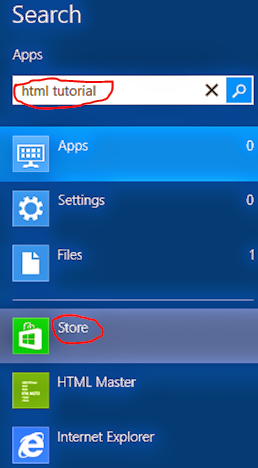
Windows 8 Search Option to search Apps on Store


  • Choosing the Apps: The Store may gather more than hundred apps for you for a single search query depending on the number of apps stored on it. But you may need only one or two of them. You can shorten the list in many ways. You can use the price, rating or reviews to select the apps. If are now willing to pay money, then choose only free apps from the category. When you will select only free apps, the list will be sorted fast! 

  • Installing the Apps: Before installing any app, check the rating and reviews of that app if any. And you should also read the details of that app. And you must check what permissions that app wants from you. If everything is okay then you can hit on the Install button. If you're not signed in with Windows Live ID, you may need to type the email and password. Now the app will be downloaded and installed. No action is necessary during the installation. Everything will be done automatically done. 

  • Uninstalling the Apps: This happens to me very often! Several times I've removed the apps immediately after installing them. Sometimes apps may not be as how you want. It that case you can remove it and look for a better alternative. To remove an app, press Start > then right click on the app you wanna remove > hit on the Uninstall button from the bottom. 


Ads with the Free Apps: Free apps may include the ads of Microsoft. Some apps don't required net connection to operate. But they will shows ads from Microsoft. If you don't like ads then you can disconnect your net while running those apps. But you must be connected to the net to run the apps that require internet access. 


Enable/ Disable Live Apps: Some apps are live. They consume your bandwidth even when you are not using them! If you don't want them collect data from internet then go to the start screen by pressing Start button > Right click on that app > choose Turn Live Tile Off from the bottom. Or when you wanna enable it do the same thing again. 


The last thing I would like to tell you, Store is a great place to find free and premium apps. It's a good step taken by Microsoft. Previously Microsoft had no app store for the users. But apple has a very rich app store for their users. We should use the Windows Store to use the apps, and we should also help to enrich it by rating and reviewing the apps. And I think it will be helpful for the Store to supply more apps for us! 


And if my post is being read by a developer I request you to cooperate the Store :) 


Stay with Marks PC Solution to get more interesting IT topics!


Monday, May 27, 2013

Windows 8 Activator for All Editions (Guaranteed) !!!


Windows 8 Transparent Logo PNG Format


Problems regarding activation of Windows 8 has been solved last year. Those who are the users of Windows 8 and having trouble to activate this version of Windows hope you already got the solution. Just after the release of the final version of Windows 8, we have provided an activator for you that works with all editions. 

At least 70% of the comments were positive about that activator. And unfortunately 30% of them were negative. They reported this activator was not working for them. And we promised if we can manage a new activator we will inform them. Today I will share another activator with you with proof! 


This activator works same as the previous one. All you is just to make a double click on the activator. Within 10/ 15 seconds your PC will be restarted. And you will see the confirmation message about Windows 8 activation. 

Okay let's start. This is a very simple and easy activator. First, download the file by hitting on the download button: 

Download

  1. After download the file you need to unzip it. 
  2. Then double click on the activator. 
  3. Wait for few seconds for processing.
  4. Now your system will be restarted and you will get the activation message. 


Cautions: 
  • Windows Defender may detect this file as virus. I think as it is a cracking tool that's why defender may consider this as a threat. But this is safe (Though I'm not 100% sure but using it on my PC).  
  • .Net Framework 3.5 is required to run this activator. If your Windows doesn't have .Net 3.5 installed then install it now. 
  • For any reason, if this activator doesn't work, then you follow this method. 

After successfully activating the Windows, you will be shown the confirmation message. And you can also find it by pressing Start + Pause as the image shows below: 


Windows is Activated message at Windows Activation Window


Most of our visitors found the previous activator useful. But some of them were unable to activate their Windows. That's why we've shared this new activator. But you can also try the previous one. 


Activate Windows 8 Just by Double Click (All Versions) !!!


It has the following advantages: 
  • Just hit and activate. 

Disadvantages:
  • Quite useful but depends on luck sometimes. (30% of the attempts were not successful)
  • Sometimes you might not see the Windows is Activated message in the Activation Window. 

Troubleshooting Tips:

Many of our visitors have reported that this doesn't work at all. Instead of activating Windows, after rebooting, they got only black screen! 

If you wanna get rid of this problem, please don't install any other third party security software like Avast, Norton or Kaspersky. Built in security of Windows 8 will take care your PC. 


Leave comment and let us know whether it works for you or not. Keep in touch . . . 


Stay with Marks PC Solution to get more interesting IT topics!


Monday, November 19, 2012

Activate Windows 8 Just by Double Click (All Versions) !!!


Windows New PNG Logo


Couple of weeks ago the final version of Windows 8 has been launched by Microsoft. Versions are- 
  • Windows 8
  • Windows 8 Pro
  • Windows 8 Enterprise
These are the main versions which have other segments too. ie. Pro N, Pro VL, Enterprise N, Enterprise VL etc. 

If you've any trouble to activate Windows 8 you can solve it just by double click. Have any doubt? Try it now! 

Whatever the version of your Windows 8, a single activator can activate any all versions. Follow the steps below:
  1. Download the zipped file from the link below.
  2. Now extract the file. (It can also work in zipped condition)
  3. Then double click on the file Windows 8 Activator.exe. 
  4. Now within 2/3 seconds your PC will be restarted.
  5. After restarting you will get some message about activation. Hit OK button in the all boxes that appear. 
  6. Enjoy the benefit of full version. 

Download Link


If you can successfully perform this task, then your Windows activation status will be as image shows below:


Most of the people found this activator working. If this doesn't work for you, then try the following one: 

Windows 8 Activator for All Editions (Guaranteed) !!!


I think at least one of them must work for you.

Also read these posts if you face any problem with these issues:


Stay with Marks PC Solution to get more interesting IT topics!


Saturday, November 17, 2012

Dot Net Framework 3.5 Not Installing on Windows 8? Fix it Now!


You may face a common problem while using Windows 8. Microsoft .Net Framework 3.5 is not installed with Windows 8. And several programs may ask you install this. And you can't install this from your PC. It will ask you to connect to the net and use Windows Update. 

By default Windows 8 comes with .Net Framework 4.5 and it doesn't include 3.5. When you try to install .Net 3.5 that you previously downloaded from web the you will see the following message. 


And you will get the same message while installing some some programs that is developed using .Net 3.5 platform. And you will not able to run those programs on your PC! This is a very bad job by Microsoft. A great trouble for Windows 8 users. 

But today you will get the solution. You've install this using command line. I mean you have to use Command Prompt. And surprisingly you Windows 8 DVD includes the .Net Framework 3.5! 


Method 1 (Offline Installation using cmd):
  1. Enter your Windows 8 Installation Disk on DVD Drive.
  2. Now run Command Prompt as Administrator. (Hint: Start > Type cmd > Now right click on Command Prompt and hit on Run as Administrator from the bottom)
  3. Now copy the following command and paste it in the command prompt window. Or type the following line in command prompt. Press Enter (To paste the command in command prompt, click the right button of mouse and select paste)
  4. Now .Net Framework will be installed within few minutes. 
DISM /Online /Enable-Feature /FeatureName:NetFx3 /All /LimitAccess /Source:h:\sources\sxs


Remember: h is the drive letter of DVD drive. Change it with your DVD drive letter. 


Method 2 (Online Method using Windows Update): 

If you follow all the instructions of method 1 you will be able to install .net 3.5 properly. But if there is any problem for example- you don't have DVD drive, or your Windows DVD doesn't contain it then you can install it directly from Windows Update option. More or less you've to download 200 MB data from internet. 


Follow the instruction below: 

Control Panel > Programs and Features > Turn Windows Features on or off > Mark the option .NET Framework 3.5 (includes .NET 2.0 and 3.0) > OK. 
Now you will see a window like the image above. Hit on Install This Feature. And make sure you're connected to the net. That's it.  


Secret Tips: If you upgrade to Windows 8 from Windows 7, then you get .Net Framework 3.5 automatically enabled !!


Installing a Windows language pack on Windows 8 before installing the .NET Framework 3.5 will cause the .NET Framework 3.5 installation to fail. Install the .NET Framework 3.5 before installing any Windows language packs.


Don't forget to share this troubleshooting tips with your friends. 

Stay with Marks PC Solution to get more interesting IT topics!