Showing posts with label Troubleshooting.. Show all posts

Tuesday, February 12, 2013

How to Disable Automatic Updates of Windows (All Versions)


How to Disable Automatic Windows Updates


Windows provides regular updates for the Windows users. Windows Updates are available for XP, Vista, 7 and 8. Update includes important security tools, new features etc. Sometimes updates are very large in size. It may be more than few hundred MB(s). Most of the cases these updates are not very important for the users who are using Microsoft Security Essentials (MSE). In that case you can disable the Auto Update Feature. 

Today I'm gonna talk about turning off the automatic updates of Windows Operating System. Intermediate users may be already know this tips. But beginners hardly know about it. 

However this is a very simple tips. Just follow my instruction: 


Disable Auto Update in Windows XP: 
Press Start + R > type Control and press Enter > Security Center > Go to Automatic Update > Choose Never Check for Updates. 

Disable Auto Update for Windows Vista, 7 and 8: 
  1. Press Start + R > Type Control and Press Enter 
  2. Scroll down to the bottom and hit on Windows Update
  3. Now hit on Change Settings
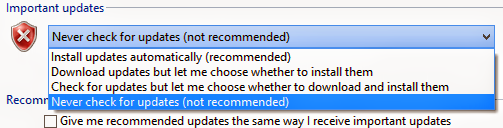
  4. You can Choose either Never Check for Updates or Check for updates but let me choose whether to download or install them as showing in the image below.
  5. Hit OK. That's it. 


How to disable automatic updates in Windows


Stay with Marks PC Solution to get more interesting IT topics!


Saturday, February 9, 2013

Show Post Title before Blog Title in Search Results


Optimize Blogger Post Title in Search Results


If you're using blogger for your blog then you may notice search engines show your Blog Title first instead of Post Title. Certainly this will affect the flow of visitors in your site. Because when someone is searching for a topic he would like to click on the site that matches his search words. But if your blog title appears first then the visitors may skip your site! 

Today I'm gonna discuss about how can you optimize the issue of blog title and post title in search result. And remember, this trick is for blogger only. Before you start, look at the image below:

Show Post Result before Blog Title in Search Results

What do you see here? A search topic like that- Cell phone quality using IMEI. Also look at the first 2 results. The first one showing- How to Check Cell Phones Quality Using IMEI. The second one showing- Tips n Tricks: How to Check Cell Phones Quality Using IMEI. 

In the second search result the Blog Name Appears first. Tips n Tricks doesn't match the search result. 

But in the first result you notice that Marks PC Solution appears first. But blog name is not showing first. Rather you can see the Post Name. So which one should you visit as a visitor? Certainly the first link. 

Now follow the simple instructions below to apply this on your blogger site. 
  1. Sign in to your blogger account and go to the Dashboard or Design. 
  2. Now go to the Template option and Click on Edit HTML. (Please Backup your template if you're a beginner)
  3. You will see the Template window. Press Ctrl + F and type the red colored code in the search box to find it:  <title><data:blog.pageTitle/></title>
  4. Now select the red marked code and replace it with the following code:
<b:if cond='data:blog.pageType == &quot;item&quot;'><title><data:blog.pageName/> | <data:blog.title/></title> <b:else/><title><data:blog.pageTitle/></title></b:if>
You're almost done! Now save the template and close it. 


You may not be able to see the effect immediately. Because search engines might require few days to update their databases or crawl your blog. However you can see the effect immediately in your browser's tab. Hope it will boost your site's traffic. And certainly it will be helpful for SEO too. 

Stay with Marks PC Solution to get more interesting IT topics!


Thursday, February 7, 2013

Test and Optimize the Load Time of your Site


How to test the loading time of your website


Today I'm gonna talk about improving the loading time of website or blog. Well this is not a new post in this blog. You will find the following posts related to this one: 

To be honest, I'm not an expert in optimizing websites or blogs. Again I can say, someone shouldn't be HTML or CSS expert to improve the loading time. There are lots of free online tools to test the loading time of website or blog. Today I will discuss about a site named Pingdom Tools. 

  • First of all you need to visit here. 
  • Enter your  Home Page URL in the blank box and hit Test Now button. 
  • Within few seconds you will get an score or result as the above image. 
Just under this short result you will get some buttons named as:
  • Waterfall
  • Performance Grade
  • Page analysis 
  • History
Each of this options will show you a detailed analysis of the tested URL. If you analyse the result then you will be able to know which part of your site needs to be optimized. 

Here are few suggestions for you: 
  • Use the minimum number of images
  • Use the minimum number of CSS/Java/HTML scripts
  • Try to place the Java/HTML script to the bottom of the site
  • Do not upload your scripts in the slow servers
  • Try to keep the size of image minimum
  • Avoid using any unnecessary scripts that is only for beautification purpose 

Stay with Marks PC Solution to get more interesting IT topics!


Thursday, January 24, 2013

How to Delete an OS by MSCONFIG?


How to delete an operating system


It was at the end of 2011 when Windows 8 was released for the first time as developer preview version. I installed it on my PC with Windows 7 side by side. Most of the people didn't like it. But I was very impressed just after using it for few hours. 

Then I decided to remove Windows 7 to continue with Windows 8. Windows 7 was installed on Drive C and Windows 8 was on D. To delete Windows 7 I booted from Windows 8. And tried to format C Drive. 

But drive C was not formatted! Because Windows files were very much protected. They can't be formatted until you re-install your windows. What should you do now? How will you remove the OS that you don't wanna use? 

Let's find how to solve this problem. 
  1. Open System Configuration. (Hint: Start + R > msconfig > enter) 
  2. Select the Boot Tab.
  3. Choose the Operating System you wanna remove. 
  4. Now hit the Delete button. 
  5. Open My Computer. Format the drive where removed Operating System was installed. That's it. 

Don't try to remove the OS on which your PC is currently running! I mean if you wanna remove Windows 7 then start PC by Windows 8. Because you can't cut the tree on which you're climbing! :)


How to delete an OS by msconfig


Stay with Marks PC Solution to get more interesting IT topics!


Friday, July 13, 2012

Security Master Code for Nokia - Use if you forget Nokia security code!

Any mobile has its default security code. And a person may need to change the default security code to enhance the data security. But if the password is forgotten then what? 

In that time you will not be able to access your phone. In that time you can only take it to the service center and expend some money. But If you use Nokia then I have a solution. And this post is going to teach you how to break a security code of Nokia Phone using Master code. Follow the steps below: 
  1. Click on this link. 
  2. In the landing page you will see a box tell you to enter your IMEI number. 
  3. To check your IMEI number, you can either type *#06# or look for it on the battery of your phone or find it on the packet of your phone. 
  4. Now type the IMEI number in the given box and check the box showing I'm legal owner of the phone with that IMEI and hit on the generate button. 
  5. After clicking the generate button you'll be able to see a code below the IMEI number called security master code. You can use this code when your phone wants the password. 


Stay with Marks PC Solution to get more interesting IT topics!