Showing posts with label basic HTML document structure. Show all posts

Sunday, May 19, 2013

HTML Tutorial 2: Basic Parts of HTML Document


HTML Image with example Codes


In my previous post, I started writing about HTML. As it was the first tutorial of HTML, I just showed you the example of an HTML document without giving detailed information of that document. 

In this post, I'm gonna discuss about the essential parts of an HTML document. Essential parts mean those parts which are very common for each and every HTML document. I mean the HTML tag, the Header, the Title and the Body. 

Before you start, please have a look at the HTML Tutorial 1 if you haven't go through this already. 

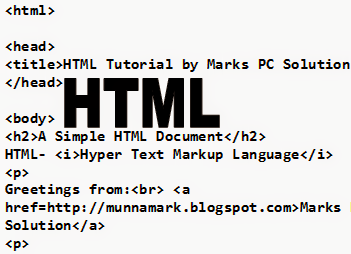
After reading the tutorial 1 look at the image below:


Basic parts of an html document with name and code


Here you can see all the four parts that I used in the example document. Let's what are they actually:


The HTML Tag: <html>

Every HTML or XHTML document start with <html> tag and ends with </html> tag. Even if you right click on this page and hit on view source/ view page source option you will see the html of this post. At the top you will see <html> tag, and and the bottom you will see </html>. 

That means the whole document is considered as HTML by the browser. So, whenever you create a new HTML document, you must start it with <html> tag and end with </html> tag. 


The Document Head: <head> Tag

This tag is placed just below the <html> tag. This is the head of your document. It may include many other tags. Most importantly, the header tag includes the document title, I mean the <title> tag. 


The Document Title: <title> Tag

Your document should have a Title. Title should be started with <title> tag and it will be ended by </title> tag. Basically title is the name of your document. It will not appear in the document text! You will be able to see the title just at the browser tab. See the example image of Tutorial 1


The Document Body: <body> Tag

This is your actual contents. What do you wanna write or create in an HTML document should be within <body> </body> tag. It may include thousands of other tags which are necessary to decorate your document. 


By this time, hopefully you have a basic idea about an HTML document and its essential parts. You should notice every tag starts with <> and ends with </>. Actually some tags don't have any closing tag! And some tags don't need to be closed. 

Which tags don't need to be closed and which don't have any ending tag at all will be discussed later. And in my next post, I will discuss the different tags used in the Tutorial 1


HTML is not very tough learn. But the area of HTML is huge. Latest version of HTML is HTML 5. HTML may include new rules in the future just like as new words and phrases are added to a language. So you will never be able to finish your HTML course. It is a life long learning. 

All you need is patience to be skilled in HTML. Learn the rules one by one and step by step. Use them in your works and practice the rules. You should be fine with HTML. 

Stay with Marks PC Solution to get more interesting IT topics!


HTML Tutorial 1: Creating a Simple HTML Document


HTML Codes Example


If you're regular in this site, you should know I am not a programmer. Several times, I've mentioned that I'm a person with no programming knowledge. Even my HTML knowledge is not good enough. Just few days ago, I decided to enrich my knowledge on HTML. I will publish HTML lessons for you. Thus you will be also learning HTML with me! Whenever I learn something about HTML, I will publish it here. 


I'm not gonna discuss about the history of HTML. Hope you all know that HTML- Hypertext Markup Language. Whatever you see on your browser when visiting any site, your browser shows it through HTML. You can easily view what a website includes. Do as below:

  1. Open any website in your browser. 
  2. Right click on it. 
  3. A menu will appear.
  4. Click on View Source/ View Page Source. 
  5. A new window will open with the HTML of that website. You will see thousand lines codes! This is how your browser see a website. 


Today I would like to start with an example. In this lesson you will learn how to create a simple HTML document. I mean you will get an idea about the basic structure of an HTML document. 

Okay let's start. The following texts are the properties of an HTML document. 
  • Copy the texts, and paste them in a notepad file. 
  • Save the document as HTML Lesson 1 with .htm or .html extension. I mean the saved file name should look like this: HTML Lesson 1.htm or HTML Lesson 1.html
  • Remember, you can save it by any other word but it should end with .htm or .html extension.
  • I recommend you to save the file on your desktop for quick access. 

<html> 
<head> 
<title>HTML Tutorial by Marks PC Solution.</title> 
</head> 
<body> 
<h2>A Simple HTML Document</h2> 
HTML- <i>Hypertext Markup Language</i>  
<p>                
Greetings from:<br> <a href=http://munnamark.blogspot.com>Marks PC Solution</a> 
<p> 
Prepared by: <b>Md. Abdur Rahaman</b> 
<br>&copy;2013 Marks PC Solution
<br>Protected by: DMCA 
</body> 
</html> 


After saving the document a new file will be appeared on your desktop named HTML Lesson 1. Double click on that file. It should be opened with your default net browser. If it doesn't then right click on that file and choose open with a browser. 

After opening the document in a browser you will get the following result in the browser window:

Basic HTML Document Example


You should notice the difference between your input (HTML Code) and output (Result in the browser). In compared to the HTML you have written on the notepad is more than double what you're getting in the browser window! Are you confused with that? Actually no unnecessary commands are used in the above HTML code. Each and every symbols and characters of the above HTML code are the basic properties of any HTML document. Without them, no HTML document can be prepared. 


In my next lesson of HTML, I will discuss about the basic parts of an HTML document. And I will also try to clarify the tags, symbols, codes used in this example. Get ready for that! 


Note: In the above code, I have created gaps between parts. After html tag, head tag I have used enter. Basically in the document this space will have no effect. This space is only for your better understanding. 


Stay with Marks PC Solution to get more interesting IT topics!