Tuesday, February 12, 2013

How to Disable Automatic Updates of Windows (All Versions)


How to Disable Automatic Windows Updates


Windows provides regular updates for the Windows users. Windows Updates are available for XP, Vista, 7 and 8. Update includes important security tools, new features etc. Sometimes updates are very large in size. It may be more than few hundred MB(s). Most of the cases these updates are not very important for the users who are using Microsoft Security Essentials (MSE). In that case you can disable the Auto Update Feature. 

Today I'm gonna talk about turning off the automatic updates of Windows Operating System. Intermediate users may be already know this tips. But beginners hardly know about it. 

However this is a very simple tips. Just follow my instruction: 


Disable Auto Update in Windows XP: 
Press Start + R > type Control and press Enter > Security Center > Go to Automatic Update > Choose Never Check for Updates. 

Disable Auto Update for Windows Vista, 7 and 8: 
  1. Press Start + R > Type Control and Press Enter 
  2. Scroll down to the bottom and hit on Windows Update
  3. Now hit on Change Settings
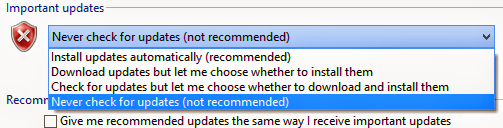
  4. You can Choose either Never Check for Updates or Check for updates but let me choose whether to download or install them as showing in the image below.
  5. Hit OK. That's it. 


How to disable automatic updates in Windows


Stay with Marks PC Solution to get more interesting IT topics!


Sunday, February 10, 2013

Download Flash Game: Flamingo Drive for Free !!!


Yet in Africa Flamingo Drive Screen Shots


Gamers love to play large games like GTA, NFS, IGI. But still few of you may like to play Flash Games like me. Though I love to play Racing, Action or Cricket but still I've a great attraction to small Flash Games. Today I'm gonna share such a game with you. It is named as Yet in Africa- Flamingo Drive. You can download this for free! 

This game is very small in size. You've download a zipped file which is less than 2 MB. It is a flash game. You've to operate it by mouse. 

  1. Download the zipped file from the link below and unzip it. 
  2. Now click twice on Flamingo Drive to run the game.
  3. Just at the right bottom corner you will see the Play button. Hit this 4 times.
  4. Now you're ready to play.
  5. You've 5 chance available to hit. 
  6. In each chance you've to click twice. The first click will set your direction. And the second one will set your power. 
  7. You can also see the preview just at the bottom of the game. 
  8. Play n Enjoy! 


Stay with Marks PC Solution to get more interesting IT topics!


Saturday, February 9, 2013

Show Post Title before Blog Title in Search Results


Optimize Blogger Post Title in Search Results


If you're using blogger for your blog then you may notice search engines show your Blog Title first instead of Post Title. Certainly this will affect the flow of visitors in your site. Because when someone is searching for a topic he would like to click on the site that matches his search words. But if your blog title appears first then the visitors may skip your site! 

Today I'm gonna discuss about how can you optimize the issue of blog title and post title in search result. And remember, this trick is for blogger only. Before you start, look at the image below:

Show Post Result before Blog Title in Search Results

What do you see here? A search topic like that- Cell phone quality using IMEI. Also look at the first 2 results. The first one showing- How to Check Cell Phones Quality Using IMEI. The second one showing- Tips n Tricks: How to Check Cell Phones Quality Using IMEI. 

In the second search result the Blog Name Appears first. Tips n Tricks doesn't match the search result. 

But in the first result you notice that Marks PC Solution appears first. But blog name is not showing first. Rather you can see the Post Name. So which one should you visit as a visitor? Certainly the first link. 

Now follow the simple instructions below to apply this on your blogger site. 
  1. Sign in to your blogger account and go to the Dashboard or Design. 
  2. Now go to the Template option and Click on Edit HTML. (Please Backup your template if you're a beginner)
  3. You will see the Template window. Press Ctrl + F and type the red colored code in the search box to find it:  <title><data:blog.pageTitle/></title>
  4. Now select the red marked code and replace it with the following code:
<b:if cond='data:blog.pageType == &quot;item&quot;'><title><data:blog.pageName/> | <data:blog.title/></title> <b:else/><title><data:blog.pageTitle/></title></b:if>
You're almost done! Now save the template and close it. 


You may not be able to see the effect immediately. Because search engines might require few days to update their databases or crawl your blog. However you can see the effect immediately in your browser's tab. Hope it will boost your site's traffic. And certainly it will be helpful for SEO too. 

Stay with Marks PC Solution to get more interesting IT topics!


Thursday, February 7, 2013

Test and Optimize the Load Time of your Site


How to test the loading time of your website


Today I'm gonna talk about improving the loading time of website or blog. Well this is not a new post in this blog. You will find the following posts related to this one: 

To be honest, I'm not an expert in optimizing websites or blogs. Again I can say, someone shouldn't be HTML or CSS expert to improve the loading time. There are lots of free online tools to test the loading time of website or blog. Today I will discuss about a site named Pingdom Tools. 

  • First of all you need to visit here. 
  • Enter your  Home Page URL in the blank box and hit Test Now button. 
  • Within few seconds you will get an score or result as the above image. 
Just under this short result you will get some buttons named as:
  • Waterfall
  • Performance Grade
  • Page analysis 
  • History
Each of this options will show you a detailed analysis of the tested URL. If you analyse the result then you will be able to know which part of your site needs to be optimized. 

Here are few suggestions for you: 
  • Use the minimum number of images
  • Use the minimum number of CSS/Java/HTML scripts
  • Try to place the Java/HTML script to the bottom of the site
  • Do not upload your scripts in the slow servers
  • Try to keep the size of image minimum
  • Avoid using any unnecessary scripts that is only for beautification purpose 

Stay with Marks PC Solution to get more interesting IT topics!


Monday, February 4, 2013

Self Assessment Test by Brain Works !!


Self Assessment Test to evaluate brain usage


Today I'm gonna talk about something different. It can be compared to a psychological test. If you take this test you will be able to know which part of your brain works more than other parts. How you respond to new situations or experiences. 

This test will also help you to realize what will be the effective learning system for yourself. It will show you how you use the parts of your brain and by what percentage. 

This self assessment test is prepared by Synergistic Incorporation Ltd. 
  1. Download the zipped file from the link below and unzip it. 
  2. Click twice on Brain.exe file.
  3. Now you will see the Welcome Screen. Click anywhere or press any key to continue.
  4. Enter Your Name and press Enter.
  5. Read the Introduction message if you want or press any key to continue.
  6. Another message may appear. Read this or skip. Reading will increase your understanding of this software. 
  7. Now you've to answer 20 questions. Answer all the questions. You can use mouse or press A, B or C to answer a question. (Remember: There is no right or wrong answer)
  8. When you finish you will see an image of your brain usage. Focus on your percentage of Auditory, Visual, Left and Right brain usage. 
  9. Then hit on Personal Evaluation and read the full report about your brain. That's it. 

Note: When you run this application on your PC you can't close it, or go to the desktop. To close this program press Alt + F4. And simply press Start + D to go to the Desktop. 


Stay with Marks PC Solution to get more interesting IT topics!


Saturday, February 2, 2013

Join Audio Files and Convert it to a Single File!


MP3 Joiner


In my very last post, you learned how to cut an audio file. Today you're gonna learn the opposite thing! Today I'm gonna write about how to join some audio files to convert them into a single file. 

You may like a song very much. But you may dislike the few parts of the same song. What do you do then? Split the song as you like and listen to them separately? You may do so but this is really uncomfortable. 

Better you join the files into a single file. There are many programs to join the audio. For your convenience I will use Shuangs Audio Joiner. It has following advantages: 
  • Portable (No installation required)
  • Easy and friendly interface
  • Free or charge
  • Compatible with all running version of Windows
  • Options to control the output file format and size
There is a single problem that is very irritating is that it is little bit slower. However as a free tool  I think this is very handy. 

So we can start our tutorial. Follow the simple instruction below:   
  1. Download the zipped file from the link below. It's 1.3 MB in size. 
  2. Unzip the folder and keep it in a safe location on your Hard Drive. 
  3. Open the folder and hit on AudioJoiner.exe (You can also create a shortcut of it on your desktop). 
  4. Hit on Add button > Find and select your audio files > Click on Join button > Choose Output Format > Next > Choose Bitrate (Select 128 or less to save time) > Next > Select Destination > Give a Name > Hit on Join. 
  5. Now wait for the mission to be finished. That's it. 
mp3 joiner


Stay with Marks PC Solution to get more interesting IT topics!

Friday, February 1, 2013

Cut Large Audio Audio File: MP3, WAV, WMA, MP2


How to Cut or Split Audio Files


My today's discussion is very common but still I think it will be really useful for you. Today I'm gonna talk about how to cut or split an audio file. Earlier I wrote about- Cut or Convert Audio & Video Files Using VLC !!

Those who already know this tips may think this is very simple. I also know this is a simple trick. But who can't do this, know how useful and necessary this is. I will show you this tutorial using Data Doctor Audio Splitter. 

Data Doctor Audio Splitter is a nice, small and handy tool for cutting audio files. When you wanna cut a song or music to make ringtone, or if you wanna cut a large files that contains more than 1 song this tool will be really useful.  


Features: 
  • Portable 
  • 100% free !
  • Fast and Reliable
  • Simple and easy to use interface
  • Supported Files: MP3, WAV, WMA and MP2. 

Instructions:
  1. Download the file from the link below and unzip it. Download size will be 600 KB.
  2. Click twice on Data Doctor Audio Splitter.exe
  3. Choose your desired audio song hitting on the Browse button located at the right side.
  4. Now play the song and wait for the desired position where you wanna set your start point. Then click on the Start button to set start point.
  5. When you wanna finish the song click on the End button to set finish point. You can also preview the song before splitting. 
  6. Finally hit on the Split button and give it a name and set a location for it. 
  7. Hit OK. That's all! 


Cut audio and make ring tone!


Stay with Marks PC Solution to get more interesting IT topics!